Showing posts with label VS. Show all posts

Saturday, 13 September 2014

ANDROID L VS IOS 8


ANDROID L VS IOS 8


Apple and Google have both recently unveiled their upcoming mobile operating system updates, with Apple's final iOS 8 due to be unveiled today on the iPhone 6 , while Android L will be released later this autumn. Google's offering is Android L, while Apple's is iOS 8. Here, we compare the two in our Android L vs iOS 8 comparison preview, to determine what's in store for iPhones, iPads, Android smartphones and Android tablets later this year.

Android and iOS are actually getting closer than ever, so there are many similarities to discuss in addition to the differences between the two rival operating systems. Read on to find out more about how they compare.

Android L vs iOS 8 comparison: Availability


As mentioned above, both iOS 8 and Android L will be released to the public this autumn, probably in September or October. There are ways to get your hands on iOS 8 and Android L now, though they're both in beta or preview versions so it's advisable not to install them on your main device.

You'll have to pay to join Apple's developer program if you want to start using iOS 8 (it's £60 per year) but you can get your hands on Android L for free. Here's how. Also see: Android L offers remarkable battery life, but it's no faster than KitKat

To run iOS 8, you'll need an iPhone 4S, iPad 2, iPad mini or later, and for Android L you'll need a Google Nexus 5 or Nexus 7.


Android L vs iOS 8 comparison: Design

The design of iOS 8 is mostly unchanged from the design of iOS 7, which is no surprise as it was iOS 7 that brought the major design changes. iOS 8 has that 'flat' design, ditching all signs of skeuomorphism in favour of minimalist aesthetics.

This year, it's Android's turn for a bit of a design change. Google has introduced a new 'Material Design' look for Android, which has also been offered to developers for use in their Android apps. Android L brings more depth to the operating system's appearance using shadows, and also automatically generates touches of colour based on the content being displayed.


Above: The dialler in Android L is a good example of the new design. It uses circles instead of squares, and is brighter and lighter overall. The icons along the bottom have been tweaked too.

Additionally, there are new animations and touch feedback, so the overall look and feel of the operating system is smooth and responsive.
Android L vs iOS 8 comparison: Features

When it comes to new features, both Android L and iOS 8 have many. We'll go through some of them here, and discuss how they compare to one another.
Android L vs iOS 8 comparison: Notifications

In Android L, you'll find new, enhanced notifications. You'll be able to get them on your lock screen, and they'll be automatically ordered in priority. You can swipe them away if you want to dismiss them, or double tap to open the relevant app.


Similarly, notifications have improved in iOS 8. They're now interactive, so you'll be able to reply to text messages, accept calendar invitations, snooze reminders and even Like Facebook statuses you're tagged in without even having to leave the app you're in. You can already swipe them to automatically go to the relevant app, but you can't swipe to dismiss them.


We'd say iOS 8 when it comes to its new notification features, and we're particularly excited about the new interactive capabilities they'll offer.
Android L vs iOS 8 comparison: Lock screen

As mentioned briefly above, Android L brings a new lockscreen to devices. In addition to being able to see notifications, you'll also be able to swipe up to unlock, swipe right to launch the dialler or swipe left to launch the camera.

In iOS 8, the lock screen is unchanged from iOS 7, offering notifications, slide right to unlock and slide up to access the camera. There's no way to quickly access the dialler, though.
Android L vs iOS 8 comparison: Multi-tasking

Multi-tasking in iOS 7 was already pretty good, but Apple has taken it a step further by adding recent and favourite contacts to the screen when you double click the home button to access the multi-tasking menu. These contacts appear in a swipable list along the top, to allow you to quickly and easily call, text or FaceTime call that person.


Android L brings multi-tasking to a new level for its users, too. Now, open apps will appear in cards in a carousel, which you can flow through by sliding up or down on the screen. To close an app, swipe the card to the left or right.

What's cool, and something that iOS can't do yet, is some apps will show multiple cards depending on how you’re using them. For example, if you've got multiple tabs open in Chrome, you'll see each of them as an individual card on the multi-tasking screen.


Android L vs iOS 8 comparison: Security

Google has introduced a new personal unlocking feature that'll enable users to unlock their smartphone or tablet without entering their passcode, but only when they are close enough to a device such as an Android Wear smartwatch.

Apple has its Touch ID fingerprint sensor, which is built-in to the home button of the iPhone 5S. In iOS 7, it was only able to unlock the device or be used instead of entering Apple ID details, but it'll be opened up to third-party developers with iOS 8, so users will be able to use their fingerprint to access other apps such as banking applications, for example.

Both Android L's and iOS 8's new security features won't be available to everybody, of course - if you don't own an iPhone 5S or an Android Wear smartwatch, you won't be able to use them.
Android L vs iOS 8 comparison: Battery life

We don't yet know exactly how Android L and iOS 8 will affect the battery life of the devices they're running on, but both let you identify how individual apps are using battery, and make improvements based on that information. Android L has an additional battery saving mode which iOS 8 doesn't.

Google claims that the new battery saving mode coming with Android L will give the Nexus 5 90 minutes more battery life.

We'd like to see Apple introduce a similar feature, as iPhones are notorious for their poor battery life.
Android L vs iOS 8 comparison: New developer features

Both Google and Apple have added some new tools for developers that could mean exciting new abilities will arrive on Android and iOS devices soon. It's particularly surprising that Apple has opened up iOS to developers a bit, as it's a company that has always been known for its closed nature.

Apple has introduced what it calls Extensibility, which basically means that apps in iOS will be able to 'talk to each other' like never before. For example, using 'Action extensions,' Safari could gain a Bing translate feature, taking advantage of the Bing app's capabilities. Or, Safari could gain a 'Pin' button for Pinterest users if the Pinterest app is installed. The possibilities here are endless, and extremely exciting for iOS users and developers.


Another element of Apple's extensions is 'Today extensions' which are actually widgets that can be chosen to appear in the 'Today' view in iOS 8's Notification Centre. Android has had home screen widgets for a long time, so Apple is bringing itself in line with its biggest rival with this feature.

Widgets and other extensions are much more restricted in iOS 8 compared with Android, though. Apple is keen to keep its operating system secure, and won't allow developers to release apps that are just widgets, or just keyboards (yep, iOS 8 allows third-party keyboards for the first time).


Google has added new features in Android L for developers, such as direct links to apps from Google searches in the Chrome browser (something that has been available for a while, but only for select developers until now).

There are many more new features for developers in both Android L and iOS 8, but we'd argue that iOS 8's changes in this area are more exciting, even if they are playing catch up in some cases.
Android L vs iOS 8 comparison: 64-bit

Apple used last year's iOS 7 to introduce 64-bit compatibility to the operating system, and that continues with iOS 8.

For Google, however, Android L represents the first time the operating system has been compatible with 64-bit devices. We expect to see many more smartphones and tablets with 64-bit chips to emerge in the coming year following the announcement. This should mean speedier and smoother performance and a big power boost for Android devices.
Android L vs iOS 8 comparison: Health & Fitness

Both Apple and Google have unveiled fitness and health tracking platforms for their upcoming operating system updates. Apple's offering is called Healthkit, which works with the new Health app, while Google's is called Google Fit for Android.

Both have similar purposes: they'll help you keep an eye on your health and fitness data thanks to the sensors on your mobile or wearable devices, and also some input from you. Healthkit and Google Fit are platforms for developers to take advantage of, but Apple's Health app is a bit like Passbook, pulling together data from other health and fitness apps into one, easy to access place.
Android L vs iOS 8 comparison: Hey, Siri. Ok, Google.

There's no doubt that Apple's new 'Hey, Siri' trigger to activate the voice assistant hands-free is a feature borrowed from Android's 'Ok, Google' activation for Google Now. However, this works only if the device is running on external power or if Siri is already open on screen.

Plus, also like Google Now, Spotlight in iOS 8 will let you search more than just what's on your phone. It can search the App Store, iBooks Store, Wikipedia, Maps, iTunes and more, and it'll bring up local movie showings, news trending among your friends etc.
Android L vs iOS 8 comparison: Handoff


Also new in iOS 8 is 'Handoff,' a feature that's going to be a huge boon for anyone with multiple Apple devices. It'll mean that, if you've been writing an email on your way home and have just arrived home, your Mac will automatically ask whether you'd like to pick up that email on OS X instead. It's not just for emails, either. Most Apple apps that work across both OS X and iOS will work with Handoff. You'll also be able to pick up calls on your Mac, and see all of your messages, even if they're not iMessages.

Some of these features are available for Android, too, though third-party apps are required and it's not quite as seamless or refined as Apple's Handoff. If you own a Chromebook, though, Android L will automatically unlock your laptop when your smartphone or tablet is close by, and your notifications will appear on both your laptop and your mobile device.
Android L vs iOS 8 comparison: CarPlay & Android Auto

With Android L, Google has introduced Android Auto, which is similar to Apple's CarPlay feature unveiled alongside iOS 7 last year.

They are both very similar services, using your smartphone to offer you information and controls on your dashboard's screen including maps, music and other apps. You can find out more about Android Auto here, and more about CarPlay here.
Android L vs iOS 8 comparison: Compatibility


Another factor to take into consideration when comparing these two upcoming updates is compatibility. iOS 8 will be able to run on the iPhone 4S or later, the iPad 2 or later and both generations of iPad mini.

Those with Android devices might have more trouble getting Android L straight away. If you own a flagship phone or tablet from Samsung, HTC, LG, Sony, Motorola or any other big name brand, you should get the update quite quickly. Those with Google's Nexus 5 or Nexus 7 should get access to it immediately when it's released to the public. HTC has said that HTC One M8 owners will get Android L within 90 days of its release, but we've not yet heard from other manufacturers. We'll update this article when we find out more.

Wednesday, 10 September 2014

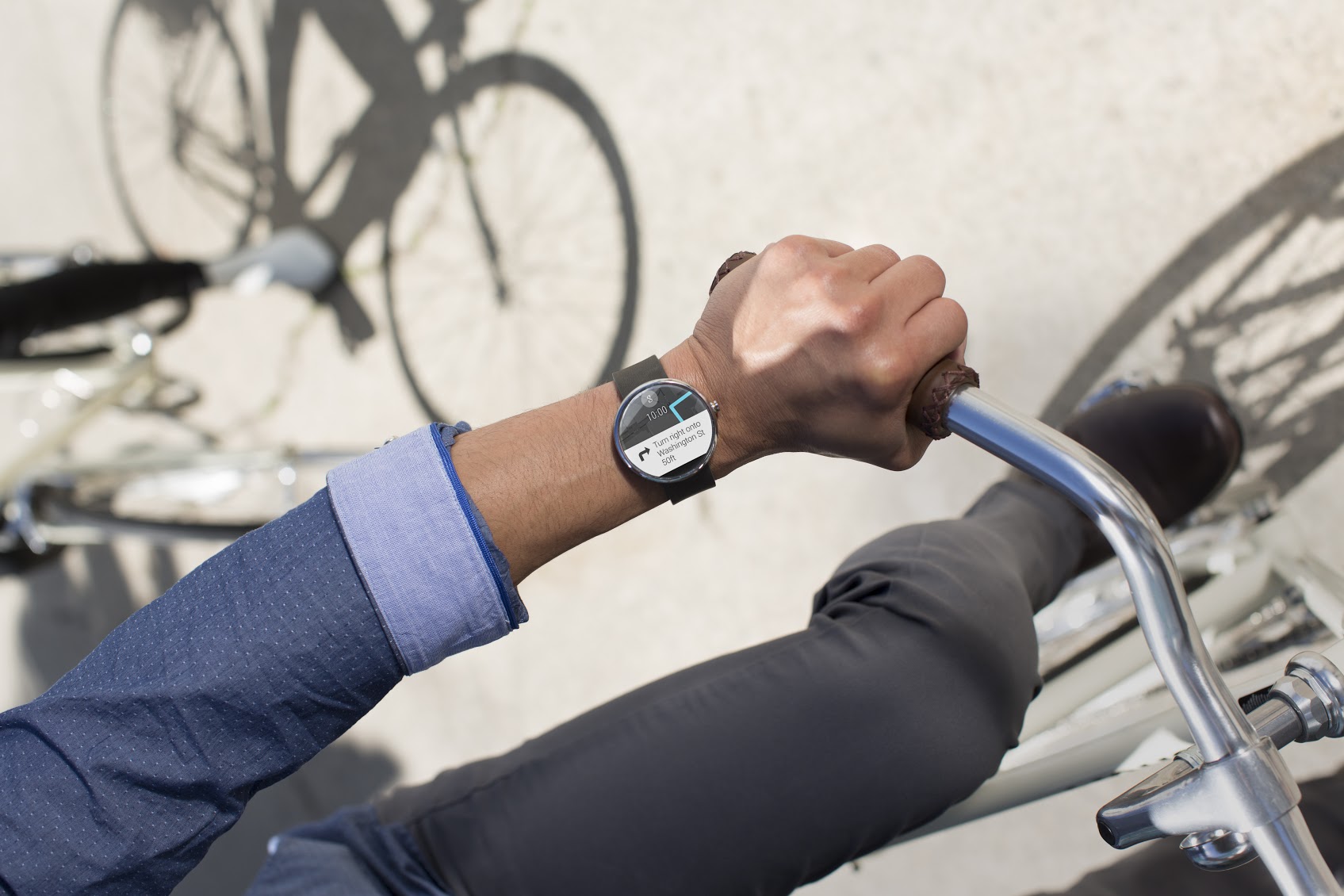
Apple Watch vs Moto 360


Apple Watch vs Moto 360

Apple watch Features Design 15

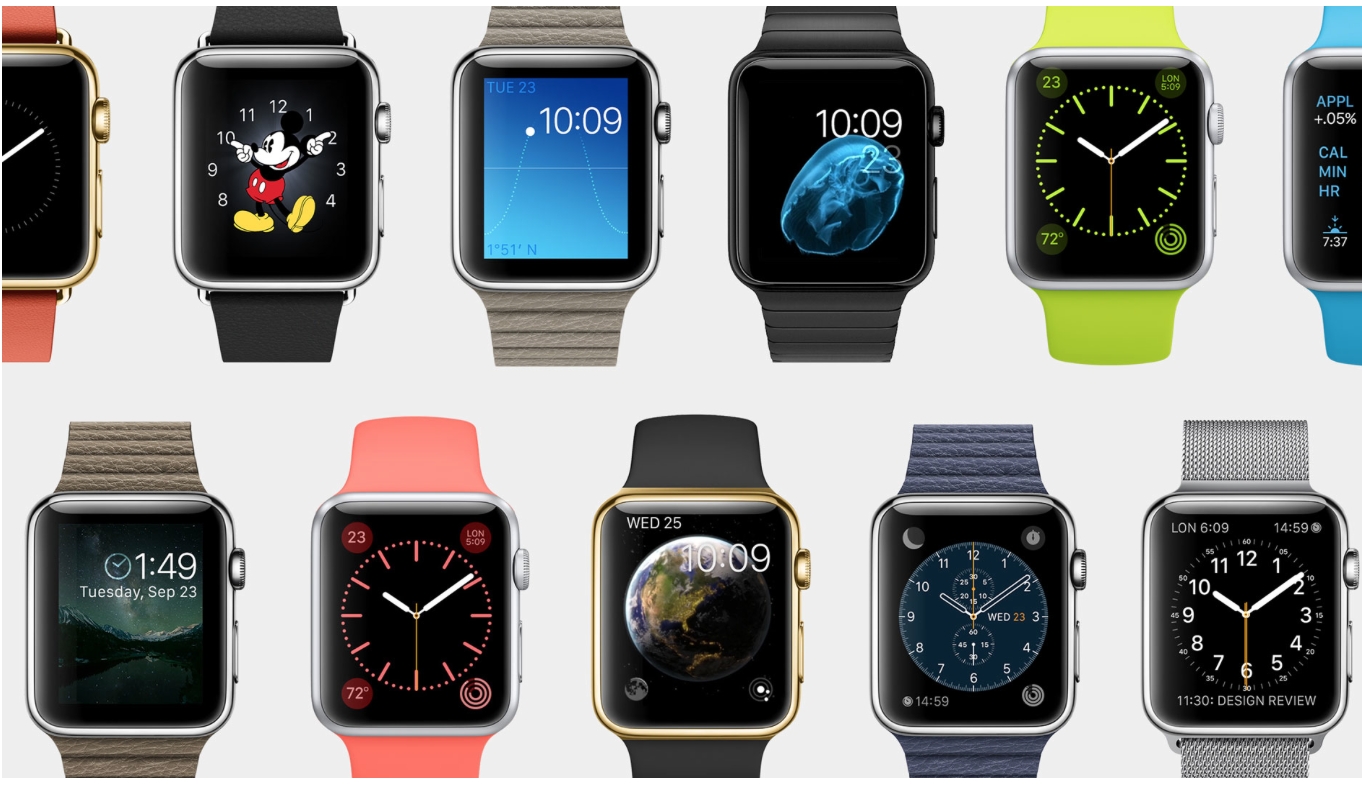
Apple’s first attempt on the still nascent wearable market was huge, with people eyeing Tim Cook’s wrist the moment he entered the stage. Apple Watch (not iWatch) will be priced at $349 and will be available by early 2015. It will come in three variations – Apple Watch, Apple Watch Sport and the Apple Watch Edition. The wearable will be compatible with iPhone 5, 5S, 5C, 6 and 6 Plus.

There are already quite a few competitors trying to define what should a smartwatch look like on your wrist. However, Google beat Apple in that race by just a few months by releasing Android Wear. One of the crowd’s favourite is Moto 360 which was launched last week, priced a hundred dollars less at 250$.
The smartwatch technology is still in its infant stage. Apple is known for its innovations and setting trends like it did with iPods and iPads; the Apple Watch is anticipated to have the same impact. However, both Moto 360 and Apple Watch both have their strengths and weaknesses. A quick rundown to help you decide which one to buy, once the devices are available.

INTERFACE

Both companies have provided several interestingly themed watch faces which can be changed easily to suit your mood. Agreed that our watches are getting smarter, but the basic function of the watch is to tell time every time we look at the device. Apple Watch display turns off when you aren’t looking at it. When you turn your wrist, it’ll light up again only showing information when you want it.
In Moto 360, colors pop on the display, and everything is easily viewable, even in direct sunlight. However, when the display is dimmed it darkens after a few seconds of inactivity, but the time is still visible. Though, it  is very hard to see outdoors. Waking up the watch is as simple as lifting your wrist; same as on the Apple Watch.

ON-THE-GO INFORMATION AND NOTIFICATIONS

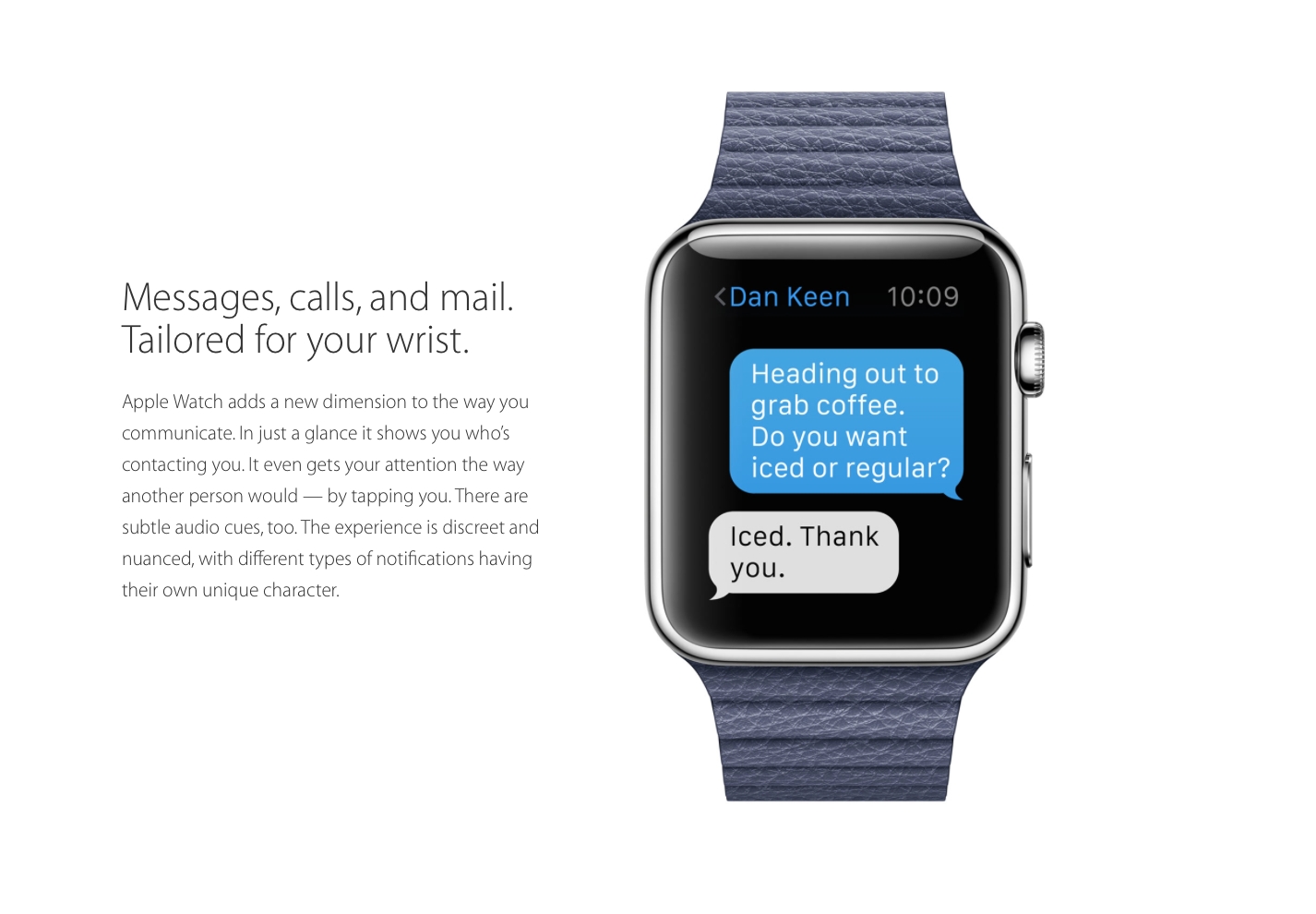
Main aim of smartwatches since their earlier days has been to minimize handset use by integrating phone notification with the smartwatch on your wrist for a easy and more convenient experience. In Apple Watch all notifications coming through your phone will pop up on your watch. If the app developer chooses to, they can enrich that notification to let you do a lot more with it — replying to messages or even taking actions, like accepting a Facebook friend request. All together, it sounds fairly decent.
Google’s smartwatch platform is all about notifications, which uses most of its interface. In Moto 360, all of your notifications are routed to it, and you can swipe through the phone to view them all, dismiss them, and even act on some of them. That said, you can’t use them as easily as Apple hopes to allow.

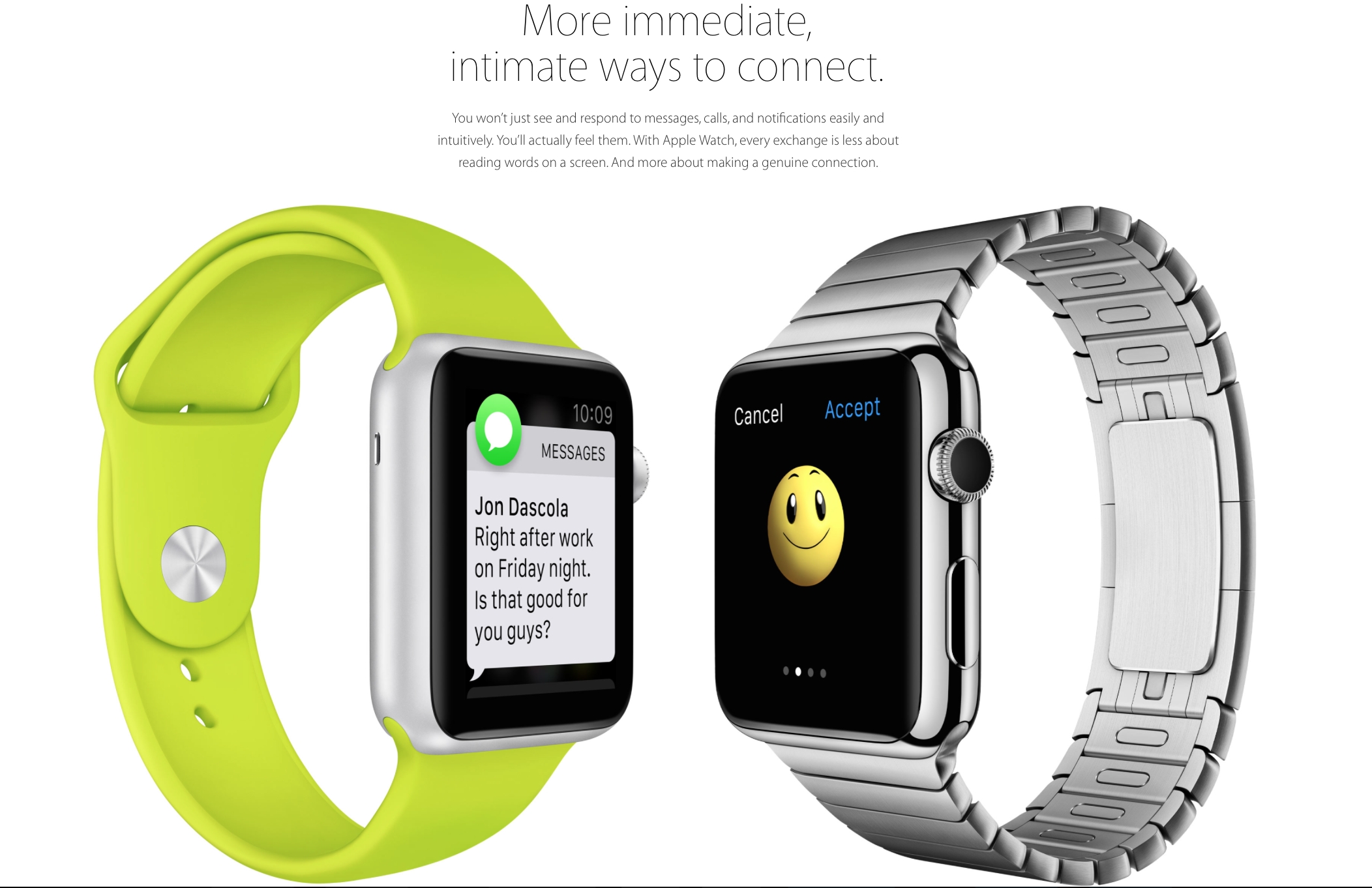
A good smartwatch, in my opinion, is the one gives you what you want, when you want it, without having to do to much. To some extend both Apple and Motorola have achieved that. Apple promises that the person sitting next to you would not be able to tell that you’ve received a notification. The notification buzz will simply give the effect as if someone is tapping you lightly on your wrist. You can customise the apps which you’d like notifications from. It will use the Bluetooth and Wi-Fi from the iPhone for all communication purposes. The built-in speaker phone and microphone can be used to receive calls and use the built-in Siri. With a simple tap on the digital crown, Siri can be activated.
The Moto 360 can do a number of things, such as display incoming calls and texts, measure your heart rate, pull up directions from Google Maps, count your steps, and tell you the weather. The idea behind Android Wear is that the watch should display contextual information before you even need to ask for it. Google Now has always been really capable, and its ability to predict and surface information that you’re interested in is built right into Android Wear. So, for example, if  your favorite IPL team has a match at 7 p.m. tonight, Android Wear would display that information on your wrist automatically.

HEALTH AND FITNESS

The Moto 360 has a heart rate monitor on the underside, that’s good for getting a causal fix on your overall health, but it will not be much of use for vigorous workouts sessions. On the Moto 360 are three pre-installed apps for measuring your overall health. Fit shows how many steps you’ve taken during the day, can measure your heart rate, and lets you set a goal for the number of steps you take each day. In a similar vein, Heart Activity displays how many minutes you need to be active during each day (it’s set at 30 minutes), and how close you are to completing that goal.
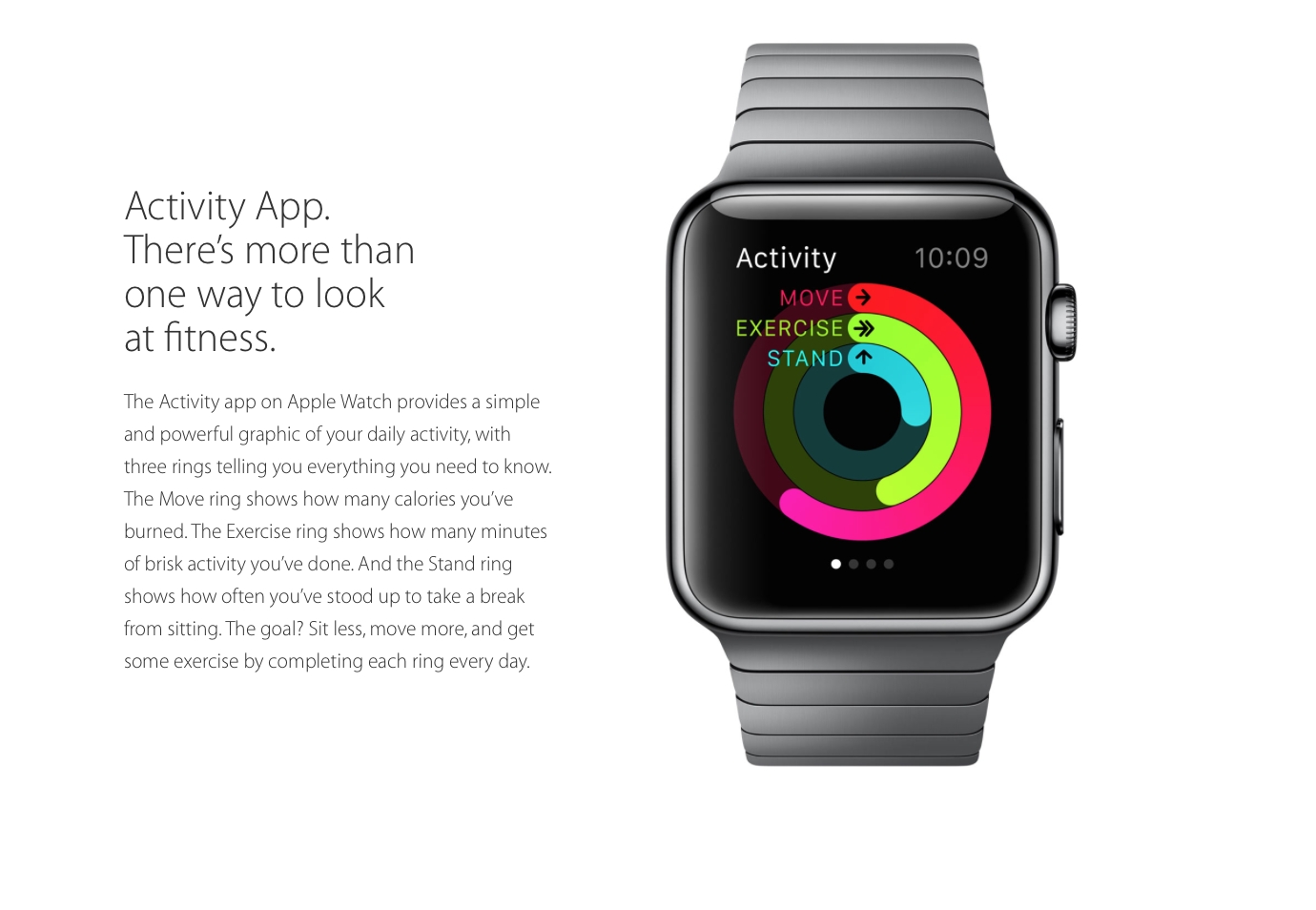
Apple Watch promises to take over and take it to a whole new level. Instead of simply tracking daily activities, the watch will actually encourage you to be more active. It has two key apps for this; the first will map your fitness activity through the day, while the second and the more important one, will help you set goals and then help you achieve them.

THIRTY-PARTY APPS

For wearables to entice prospective buyers, third party apps were needed and both Motorola and Apple understood that. Apple has already experimented with certain third-party apps. Developers will be able to create custom notifications for the home screen. For example, the City Mapper will remind you to get off at the right station, the BMW app will direct you to where you would’ve parked your car and the Nike app will allow you to challenge your friends to go for a run.
It’s been a few months, and Google says there are already thousands of apps that support Android Wear. Facebook Messenger, for instance, will now send messages to Wear and can accept responses dictated over voice. Though, we’ve seen a handful of good apps that run specifically on Wear, but no one has actually gave us any breakthrough app yet.

STYLE

Since watches are worn all the time, it’s important that they look good. The design and style should suit you well. The Apple Watch will be available in six designs. The watch comes with a mechanism which would make it super easy to switch between the straps. The straps include a sport band, soft quilted leather and stainless steel options. And since one size does not fit all, Apple has also developed smaller sizes.
 The Moto 360’s 1.56-inch-diameter round display is big, bold, and feels a lot larger than a square display. It has a 320×290 resolution, effectively, at 205ppi. Actually, it’s not fully round there’s a bit of a black bar on the bottom. Apple has done great job by giving us variety, but Moto 360’s round dial and sleek look has already garnered many fans.
A biggest setback is that the Apple Watch will be compatible with only with iPhone 5, 5S, 5C, 6 and 6 Plus, on the other hand the Moto 360 isn’t as exclusive or biased to its own brand. Apple definitely stands out with its sophisticated and extensive sensors. Unlike Moto 360, Apple Watch seems to do much more than just showing you notifications. It seems both the devices have the right components, they just need to get some developers to come up with more compelling apps.

Wednesday, 2 April 2014

APPLE VS SUMSUNG

Apple’s $2 billion lawsuit: These are 5 patents allegedly infringed by SamsungApple’s $2 billion lawsuit: These are 5 patents allegedly infringed by Samsung

One of the contentious patents
In its most recent courtroom battle against Samsung, Apple has said that the Korean smartphone leader has violated over 50 patents held by the Cupertino company. However, Apple also said that they can’t possibly try 50 patents in court, so they have narrowed down the list of alleged infringements to five patents.

Apple says Samsung should be penalised $2 billion for allegedly violating these patents. Wondering which those five patents are? Here’s a look.

Slide to unlock
We have already seen Apple go to battle with Samsung over this patent, but with varying degrees of success. As we reported last year, a German court invalidated the slide-to-unlock patent, saying it didn’t constitue enough of a technical innovation to qualify for the patent.

Florian Mueller, a noted writer on patent law issues, said at the time, “This patent isn’t even remotely as strategic as it is famous. Every user of a smartphone with a touch screen needs to perform this gesture frequently, but the patent does not cover all slide-to-unlock mechanisms but only some, and Apple’s rivals have all developed workarounds.” And that remains true till this date. Google’s stock unlocking mechanism is very different from Apple’s and so is Samsung’s unlocking method, which is not even remotely like the stock Android unlocking method.

Links within SMSes
We all know how easy it is to tap on a number or a contact within a text message to get the options to call or add them to your phone book. Apple alleges that this infringes its patent. Back in 1999, Apple was awarded a patent called “System and Method for performing an action on a structure in computer-generated data”, which is the technical description for clicking on links, numbers and other elements within a text message to perform a related action.

Despite Apple’s allegations against Samsung, this feature has been used in feature phones before smartphones came on the scene as well. On earlier Nokia or Sony Ericsson phones too one could interact with numbers within an SMS to open a new dialog, and it’s pretty much a given these days on Android devices that are not made by Samsung as well.
Auto-correct on Android

Auto-correct
Apple alleges that the implementation of auto-correct in iOS has been ripped off by Samsung and Android. While on iOS, auto-cuorrect quite literally automatically corrects the last-typed word on hitting the space bar. On the other hand, Google displays options in a side-scrolling bar on top of the keyboard, but the default auto-corrected option is picked when you hit the space bar. Apple contends that hitting the space bar to accept the default auto-correct option has been patented by them and hence cannot be used by Android or indeed, Samsung.

Background data sync
If Apple manages to get a sales injunction on Samsung phones based on this patent, we could see a whole lot of changes in Android. The thing is that even though Apple is suing Samsung in the US, only one patent (the slide-to-unlock) is directly targetted at the Korean company. The other features are a standard part of Android, which Google developed. Samsung says that it cannot be held responsible for using features that were developed by Google and so there are a number of key witnesses in the current case from the Mountain View company. Andy Rubin, the co-creator of Android, could also be called up to the stand.

Background syncing essentially describes making a new entry within an app on an iPhone, which is automatically synced to the cloud service for off-device viewing. For example, if you make a new calendar entry on your iPhone, it would almost immediately show up on the web or desktop version of the app.

As Android users know fully well, when sync is on, any changes or entries made in apps such as Keep, Calendar, Contacts, Gmail, Chrome and other apps automatically show up on the non-mobile version of these apps too. So it could greatly limit the functionality of Android.

Universal search
Apple holds a patent for universal search, which allows users to search the local device as well as the web for a particular keyword, with just one tap. So if you are search for ‘Dictionary app’ using the searchbar on an iPhone, it would show you results from within the phone and the various apps where you can find this keyword, and also allow you to search the web through just one tap. In Apple’s case, it allows users to search the web or search on Wikipedia through the universal search feature.
Searching in iOS 7
Search in iOS 7

So these are the five patents that Apple alleges Samsung, and by extension, Android has violated. It must be noted that Apple is not naming Google in any of its charges, so this is definitely a Samsung-only legal attack, but if Google’s engineers provide concrete evidence of them working on these features independently of Apple’s work, then Apple may have to change its tack. The trial will proceed till the latter half of May at the very least, with three court days scheduled for each week this month, followed by jury deliberation. So we’ll have to wait over a month to find out Samsung’s fate.

Monday, 24 February 2014

OneDrive vs.Dropbox vs.Google Drive vs. Box

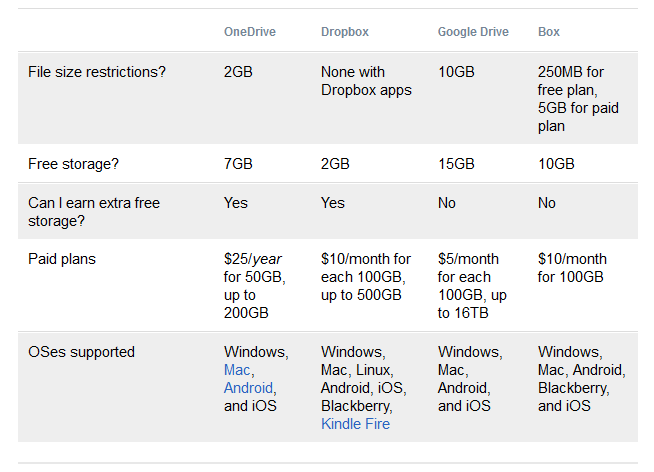
OneDrive, Dropbox, Google Drive, and Box: Which cloud storage service is right for you?

Which cloud storage service is for you?


Microsoft gave its cloud storage service a makeover today, replacing the now-defunct SkyDrive with the shiny, new OneDrive. After a legal battle, Microsoft changed the name and used the opportunity to add a few new features to its cloud option.

Though not much about SkyDrive changes in the switch to OneDrive, we're taking this opportunity to outline the differences and give you a guide to the other popular cloud storage options out there. Whether you're unhappy with your current cloud service or have never dabbled in keeping your files in the cloud, this primer will help you get acquainted with the major (and some of the minor) players out there.


OneDrive (formerly SkyDrive)


First up is OneDrive, Microsoft's storage option. Those who use Windows 8 and 8.1 have OneDrive built into their operating system, where it shows up in the file explorer next to all of the files on your computer's hard drive. However, anyone can use it on the Web, by downloading a desktop app for Mac and earlier versions of Windows, or the OneDrive Android, iOS, Windows Phone, and Xbox apps.

You can store any kind of file in the service, including photos, video, and documents, and then access them from any of your Windows PCs or mobile devices. The service organizes your files by type for you, so it's easy to find what you need.

OneDrive's biggest strength is that it works closely with Microsoft Office apps, such as Word or PowerPoint, so when you launch one of those applications you'll see a list of recent documents, including those saved to OneDrive. If you have an Office 365 subscription and open a document saved in OneDrive, you can collaborate on it in real time with other people. You'll even be able to see the changes they make as they make them. With the launch of OneDrive, Microsoft updated its Android app to add automatic photo uploads, meaning that when you shoot a photo with your phone, it's automatically saved to OneDrive. That same feature has been available on iOS and Windows Phone for a while.

Microsoft is hoping that OneDrive will be the place where you store your photos, and the company is working on technology that will eventually sort all of the photos you take based on how important and meaningful they are. For instance, if you take a photo of your kids, a picture of a special meal, and a shot of your parking space so you can find your car later, OneDrive would be able to understand the importance of each picture, save the ones it thinks are the most useful, and trash the rest. That's still big-picture stuff for OneDrive, but it gives you an idea of the direction Microsoft is moving in.

Where it excels

OneDrive works seamlessly with Windows devices because it's baked into the Windows operating systems running on PCs, tablets, and Windows Phone. It's easy to open and edit files from OneDrive in Microsoft's other applications, such as Word or the Photos app. Since OneDrive is closely tied with Office, it's a good choice for anyone who uses Office frequently.

Where it falls flat

If you don't have all Windows devices, OneDrive doesn't have as much appeal. There are apps for other devices, but it's clear that OneDrive is really meant for the Windows set.

In order to use OneDrive, you must sign up for a Microsoft account, which gives you access to Outlook, Xbox Live, and other Microsoft services. Whether or not you want all those extras is up to you.

One last note; Microsoft has a stricter code of conduct for the files you upload to OneDrive than any other cloud service. You may not store any file that depicts any kind of nudity, or that incites, advocates, or expresses pornography or racism, to name a few. It's tough to say how vigorously Microsoft enforces these restrictions, but they are nonetheless part of the Terms of Service you agree to when you sign up to use OneDrive.

Best for: If you have a Windows PC, tablet, and phone, and need to get to your files from any device with little effort.


Dropbox


Dropbox is a favorite in the cloud storage world because it's reliable, easy to use, and a breeze to set up. Your files live in the cloud and you can get to them at any time from Dropbox's Web site, desktop applications for Mac, Windows, and Linux (Ubuntu, Debian, Fedora, or compile your own), or the iOS, Android, BlackBerry, and Kindle Fire mobile apps.

You can store any kind of file in Dropbox, by either uploading to the Web site or adding it with the desktop apps. Those apps live in your file system so that you can easily move files from your computer to the cloud and vice versa by dragging and dropping them into your Dropbox folder. The service automatically and quickly syncs your files across all of your devices, so you can access everything, everywhere. There is no size limit on files you upload to Dropbox with the desktop or mobile apps, but larger files can take several hours to upload, depending on your connection speed.

Dropbox gets a lot of praise for its clean design, and rightfully so. Though I am not a fan of Dropbox's Web site because the design is very basic and it doesn't give you many options to view and organize your files, its mobile apps and desktop apps are beautiful and easy to navigate.

Dropbox gives its users plenty of opportunities to get extra storage to beef up the paltry 2GB you get when you sign up. If you participate in the quick Getting Started tutorial, you get 250MB. Turn on the automatic photo upload feature on any of the mobile apps to get 3GB of extra space (you can get only 3GB total, not per device). You can earn 500MB for each friend you refer to Dropbox who actually signs up for the service, up to 16 GB total, or 32 referrals. If you have a brand-new HTC or Samsung phone on select mobile carriers (T-Mobile and Sprint, to name a few) with the Dropbox app pre-installed, you can earn up to 48GB of additional storage for up to two years, depending on the device.

Where it excels

Dropbox's greatest strength is that it works equally well on PCs and Macs, Android and iOS. The service is so simple and elegantly designed, that it's easy for anyone to master. Its desktop applications seamlessly blend with your computer's file system.

Where it falls flat

In my experience, Dropbox's Web site design is one of the weakest of the cloud storage services. It's simple and clean, but you can't control the way your files are displayed. However, you do get many more sharing options on the Dropbox Web site, which almost makes up for the bare bones design.

Best for: Simple sharing when you use tons of different kinds of devices.


Google Drive


What started as just a handful of helpful online office tools called Google Docs, has transformed into Google Drive, a complete office suite with cloud storage. You get a little bit of everything with this service, including a word processor, spreadsheet application, and presentation builder, plus 5GB of storage space.

If you already have a Google account, you can already access Google Drive. You just have to head to drive.google.com and enable the service. You get 15GB of storage for anything you upload to Drive, including photos, videos, documents, Photoshop files and more. However, you have to share that 15GB with your Gmail account, photos you upload to Google+, and any documents you create in Google Drive.

While you can access any of your files from the Drive Web site, you can also download the Drive desktop app for Mac and PC to manage your files from your computer. You can organize all of your files in the desktop app, and they'll sync with the cloud so you can get to them anywhere.

Drive is built into Google's Web-based operating system Chromium, so if you have a Chromebook, Google Drive is your best cloud storage option. Like other cloud storage services, Drive has apps for iOS and Android, so you can manage your files from your phone.

Google Drive has the benefit of a built-in office suite, where you can edit documents, spreadsheets, and presentations, even if you created the document in another program. The service also a large collection of extras, such as third-party apps that can send faxes or sign documents.

What I like most about Google Drive is that you can drag and drop files into the Drive Web site and they'll be uploaded automatically. You can also preview attachments from Gmail in Google Drive, and save those files to your cloud.

Where it excels

Google Drive requires very little setup if you already have a Google account. What's more, if you use Gmail, it's easy to save attachments from your e-mail directly to Drive with just a few clicks.

Where it falls flat

While you can organize your files and photos in Google Drive, there's no way to automatically upload photos from your phone directly to the service. Instead, Google has an Auto Backup feature in the Google+ mobile apps, which sends your photos to your Google+ profile. I'd like for Google to create a central space where I can store and upload all of my files that combines the best of Google+'s photo editing features and Google Drive's document editing tools.

Best for: Google diehards, or anyone who wants a few office tools with their cloud storage.


Box


Anyone can sign up for a free individual account on Box, but the service's endless list of sharing and privacy features were built specifically for business and IT users. Beyond the basic cloud storage setup, where you can store just about any kind of file, Box lets you share files with colleagues, assign tasks, leave comments on someone's work, and get notifications when a file changes.

You can preview files from Box's Web site and even create basic text documents in Box. Like other cloud storage services, you can download a desktop app and sync your files between your hard drive and the cloud.

Box also gives you a lot of control over the privacy of your files. For example, you can decide who in your business can view and open specific folders and files, as well as who can edit and upload documents. You can even password-protect individual files and set expiration dates for shared folders.

Business users can also connect other apps, such as Salesforce and NetSuite, so that you can easily save documents to Box. There are also plug-ins for Microsoft Office and Adobe Lightroom that let you open and edit files saved to Box from those applications.

Where it excels

For business customers, Box is a great choice because it comes with so many tools for collaboration and file privacy control.

Where it falls flat

While anyone can sign up for a free individual account on Box, the service's endless list of sharing and privacy features can be lost on someone who's just using the service for personal storage. Because of all those features, it can feel overwhelming to navigate the Box Web site if you're only trying to manage a few files and folders.

Best for: Teams of employees working together on projects, and large companies that need a place to securely share documents with everyone.

Thursday, 28 November 2013

Siri vs. Google Now: Which is the best iPhone assistant?

Google Now voice search vs Siri : Battle of the personal assistants


As big players in the mobile phone industry look to outperform each other on certain features, voice has become one of the biggest go-tos as they hope to garner customers in recent years.
Apple kicked things off on the iOS side with the introduction of Siri in October 2011 - the personal voice assistant the company hopes lives up to the Norwegian Siri name, meaning "beautiful woman who leads you to victory".
Google's Android incorporated Google Now in 2012, which won Popular Science's "Innovation of the Year". It was launched a little later than the iOS Siri, but nonetheless was called a solid competitor at the time. There's also Microsoft's voice-enabled search features in Windows Phone, but they aren't as wide-reaching as Siri and Google Now so we've held off comparing it here for the moment. Both companies peg themselves as having the best "intelligent personal assistants", but who really has the upper hand on features?

What is Siri?

"Siri. Your wish its command," says the Apple marketing blurb.
Siri is a personal assistant developed by Apple and is hard-coded into the company's iOS software. It was a standalone app available on the App Store in 2010, but has been part of iOS since 2011. It first appeared with the iPhone 4S and iOS 5 after Apple acquired the company behind it.
"Ask Siri to do things just by talking the way you talk," Apple says. "Siri understands what you say, knows what you mean, and even talks back. Siri is so easy to use and does so much, you’ll keep finding more and more ways to use it."
Siri prides itself on using natural language to have the answer to about anything you need. It can answer questions in a witty way, make recommendations for restaurants, perform tasks like calling or texting, and load information through supported web services. Apple says Siri can even learn your personal preferences over time and become more accurate the more it's used.
Unlike Google Now, Siri isn't available cross-platform. You'll only find it on iOS.

How does it work?


Siri is loaded by holding down the home button on an iPhone 4S or later. You'll then be prompted to speak a command to Siri for interaction with applications, including Reminders, Weather, Stocks, Messages, Mail, Calendar, Contacts, Notes, Music, Clocks, Safari, Wolfram Alpha and Maps within iOS.
Using natural language, Apple wants you to speak to Siri like you would a normal person. “Tell my wife I’m running late” or “remind me to call the vet” are legitimate requests with Apple's personal assistant. It will launch an application that makes sense with your response. For example, if you ask Siri to remind you of something, a Reminders panel will pop-up within the Siri window asking you to confirm it for later.


Siri sets the stage


Apart from accessing apps quickly through voice, Siri can also give you information. You can ask for a sports score, movie showtimes that will then prompt you to buy tickets from Fandango, restaurant reviews, track your stocks, and even ask Siri about Siri. Ask “what can you do?” and Siri tells you exactly that.

Dictation

Also baked into Siri is dictation through iOS, something Apple really prides itself on. This is a feature Google actually incorporated into Android first. Instead of typing, users can tap the microphone icon on the keyboard to say what they want to say and the iPhone listens. Once you've spoken everything a "Done" option is available and iOS converts your words into text. "Use dictation to write messages, take notes, search the web, and more. Dictation also works with third-party apps, so you can update your Facebook status, tweet, or write and send Instagrams," Apple says.

Eyes free


Apple is working to incorporate Siri in a large way into automobiles. The company is working with manufacturers to bring Siri to vehicles through "eyes free" functionality. Users will be able to click a button within the car and not take their eyes off the road. They'll be able to perform normal Siri tasks like sending a text message, selecting music, performing a call, and using Maps to receive directions.

Siri Eyes free is available on several 2014 models from Chevy, Honda and Accura - with plenty of other partners lined up including BMW, GM, Mercedes, Land Rover, Jaguar, Audi, Toyota and Chrysler.

What is Google Now?

Google Now is a personal assistant developed by Google. It first debuted in July 2012 as part of Android 4.1 Jelly Bean. It's now available in the Google Search mobile apps for Android and iOS. Google Now is widely available across platforms, unlike Siri which is locked to just iOS.
Among of the core features in Google Now is its ability to help you manage your day with reminders and traffic alerts. It can also help you stay connected with news and weather reports. It will even provide local information such as nearby attractions and currency. Instead of requiring you to ask for information like Siri, Google Now will instead provide it to you automatically.

Google Now catches up


But now that Google now supports reminders and notifications

What are Google Now cards?

Google Now recognises your repeated actions. These repeated actions can be related to things like restaurants you frequently visit, annual calendar appointments, recurring search queries and more. Google Now subsequently serves up relevant information to you based on your repeated habits. This information appears in the form of cards.
There is a range of specialised cards, including ones for active summaries (walking, biking), birthdays, concerts, events, movies, news, appointments, places, public alerts, public transit, reminders, saved offers, stocks, sports, traffic, nearby attractions and events, translations, weather, etc.
Google Now also serves up information by leveraging Google's Knowledge Graph, a system that provides more detailed search results by analysing meaning and connections of keywords entered for search.

How does Google Now work?

Cards

If you really want to see what Google Now can do, then you should use it for a while, because it needs to understand your repeated actions like movements and the kind of information you are interested in or usually search. Just give it time to learn about you, quietly, in the background on your device, and you’ll soon reap the benefits.
The more Google Now learns, the better it can get you to appointments via real-time traffic conditions or reminders, for instance. Google Now cards will simply pop up with information related to you, and you can either swipe the cards away or tap them to get more detailed information. You can also scroll down on cards to request more cards.

Voice search


Google Now supports a range of voice commands and functions. You could always type searches into the search box, or you could unlock Google Now's true power and convenience by utilising voice search. All you have to do to activate voice search in the Google Search app is say “OK, Google Now," and it will anticipate follow-up questions and provide useful related information.
Here’s an example list of questions and commands:
  • Who is the Queen of England?
  • Show me the stocks for Twitter.
  • Go to Pocket-lint.com.
  • Play The Beatles.
  • Wake me up in a half hour.
  • Remind me to order dinner when I get home.
  • Launch Google Plus.
How is Google Now's voice search improving?

Conversational search

Google's Amit Singhal gave a keynote on the future of search at Google I/O 2013. He explained that forward-thinking search engines will need to evolve in order to answer, converse, and anticipate. Specifically, Singhal focused on conversational search and hot-wording, the ability to search without requiring an interface.
An example of conversational search includes being able to load the Google search engine by simply stating, "OK Google." The search engine could then answer queries in conversation as well as presenting results for the query. In the demonstration at I/O, Google's Johanna Wright showed how conversational search worked with Google's Knowledge Graph.
"Show me things to do in Santa Cruz," she told the search engine. The search engine responded, "Here are popular attractions in Santa Cruz," along with presenting results for the query. "The Knowledge Graph knows that Santa Cruz is a place, and that this list of places are related to Santa Cruz," Wright added.

Google Now conversational search

Google is clearly trying to make searching with Google as easy as possible. And it thinks conversational search is the best way - because it's the future, whether it be on a laptop or mobile device.
In the Google Search app for Android and iOS, you can say "OK Google" to launch voice search. You can also set reminders by saying things like “Remind me to check out the fair this weekend."
With Android 4.4 on the Nexus 5, you can also launch voice search by saying "OK Google" directly from the home screen. This technically indicates a step away from Google Now, but it's still part of the overall message: Google search is trying to go hands-free via voice.
At this very moment, asking Google Now about a certain topic might not garner the most accurate or snappy response, but at Google's current innovation pace, Google Now will one day be able to give you helpful responses dredged up from discussions you had with it in a previous conversation. That's the ultimate goal for Google, anyway.
Google Now is all about the Knowledge graph, voice search and specialised cards, just like conversational search is about the Knowledge graph, voice recognition and serving up information. It's inevitable that the two technologies will fully converge, or rather, evolve into a single search product from Google that can answer, converse and anticipate.

Google Now-like conversational search in Chrome

One week after Singhal's keynote on conversational search, Google updated Google Search for Chrome and Chrome OS with what it called the "no-interface" approach.
The update gave desktop users the ability to launch Google Search by saying "OK Google." They could then ask a question, and Google's Knowledge would provide a voice response with results. Users could even ask things like "Send an email to Jake" or "Show me my photos from London last year."
One of the most useful features of conversational search is the Knowledge Graph's ability to parse together what you're saying. For instance, just ask “How old is Queen Elizabeth II?”. Chrome will speak the answer. You could then ask a series of follow-up questions like “How tall is she?” or “Who is she married to?”. Google will know who you are referring to in each question and can interpret pronouns appropriately.
No typing, clarification or button-presses required.
Note: Although Chrome enables conversational search with voice recognition and natural language understanding similar to the way Google Now works on mobile devices, it does not have the full Google Now card user experience.

Conclusion 

So which one is better? Well as always with these things, there isn't an easy answer and it depends what you are looking for to suit your needs.
Google's voice conversational search is very impressive, when it works. And if you are looking for multiple queries, just not at once, then it's certainly worth giving it a try.
The system will get better and the ability either through the Google Search app on iPhone or the home screen on the Nexus 5 to just start barking commands is very clever, but with that ambition comes failure sometimes and that can be frustrating. Still, in many cases using your voice to search is quicker than typing, certainly if you are on the go; just make sure you are in a quiet environment.
As for the Cards, they too can be very useful when right, giving you weather information where you are and where you are heading, telling you about travel times to your next meeting, or reminders so you don't forget stuff. It's a much more complete service compared to Apple's Siri, which to deliver the same information needs to access a number of apps; calendar, reminders, weather, etc. But your searches can have a rogue affect and at times that can be confusing.
Siri's approach, again when it works, is to try and focus more on pretending to be your friend, and be a true personal assistant to getting more out of your phone. Phrases like "Tell my wife I am running late", flummox Google Now, but return a text message ready to send in Siri.
Likewise, you can use your voice to open apps and if you get it wrong rather than providing you with what it thinks you might need, you get a snarky answer. "What's my favourite colour?" brings back phrases like, "I can do many things but reading your mind isn't one of them." Google just gives you results for favourite colour tests. But it won't tell you you've got stuff on your to-do list, or what the weather is like on the business trip or holiday you are about to go on.
Of course, in a strange twist of fate, Apple users get to have their cake and eat it as they can run both.


Sunday, 24 November 2013

SG Round vs. LG Flex

LG G Flex vs Samsung Galaxy Round


Both Samsung and LG are pioneers of what could become a very popular trend very soon, with their respective curved display smartphones. But how do the two compare to each other? Does this increasing focus on form factor lead us to this natural evolution? Are curved displays a good thing? Are they even necessary? Let’s take a quick look at a comparison between the Samsung Galaxy Round and the LG G Flex!


Size

LG G Flex vs Samsung Galaxy Round Quick Look Hands on AA (7 of 11)

With its larger 6-inch display (compared to the 5.7-inch display of the Galaxy Round), the LG G Flex is definitely the bigger of the two smartphones. This difference in size may be the deciding factor for a lot of consumers, either for or against the G Flex, especially if you’re not used to handling devices of this size.


But, if you’ve caught our unboxing and first impressions videos of the Galaxy Round and the G Flex, you’ll know that the “problem” associated with large display device is mitigated, albeit slightly, because of the curved displays of both these smartphones. Because of the left to right curve of the Galaxy Round, access across the device is somewhat easier because of the curve. Similarly, because of the top to bottom curve of the G Flex, access to the top of the smartphone, whether at the front to open the notification center, or at the back to access the button layout, is also easier. Overall, the curves do allow for easier handling, and if the upward trend in display sizes is to continue, curved displays could play a big role in making life simpler.

Display

LG G Flex vs Samsung Galaxy Round Quick Look Hands on AA (6 of 11)

As far as the display of both these smartphones are concerned, the difference between the Samsung Galaxy Round and the LG G Flex is obvious. The Galaxy Round features a 5.7-inch AMOLED display with 1080p resolution, resulting in a pixel density of 386 ppi, while the G Flex features a 6-inch Plastic OLED display with 720p resolution, and a pixel density of 245 ppi.

LG's G Flex design is curved from top to bottom.

LG’s G Flex design is curved from top to bottom.
Before jumping to pick a winner based on specs, it’s important to note that the display of the G Flex is still quite impressive, and definitely works with the curve. For example, if you’re scrolling up and down a website, you do get the sense that the elements on the screen are bending to the curve, which is really nice. While the curved display of the Galaxy Round is also equally noticeable, the natural feeling is missing, with Samsung relying on the software, such as the side ways scrolling transitions on the homescreens, to provide that illusion.

The Samsung Galaxy Round's curvature is from side to side

The Samsung Galaxy Round’s curvature is from side to side
Granted, at the end of the day, if you’re looking for a high resolution display, the Samsung Galaxy Round is the definite choice, but the the 720p display of the G Flex is no slouch either, and should also provide a pleasurable viewing experience.

Software

LG G Flex vs Samsung Galaxy Round Quick Look Hands on AA (10 of 11)

When it comes to the software, you’re getting familiar versions of the Samsung TouchWiz UI and the LG Optimus UI with their respective smartphones.
TouchWiz remains the same as what we’ve become used to seeing recently, but the Galaxy Round includes some new features that are designed to take advantage of the curve, such as Quick Glance. Tilting the phone opens a small notifications window, which is very cool. Unfortunately, in its current version, there is on occasion a little bit of delay, and you may be better off using some of Samsung’s other staple features, such as Air Gestures, for quick access to what you need.
While limited, the Galaxy Round does take advantage of the curve on the software front, and the LG G Flex is found wanting in this regard. In our first look, there don’t seem to be that many features or functions that make use of the curved form factor of the device. In the case of the LG G Flex, the stand out feature is more on the physical side, with it being possible to flatten the smartphone with some amount of force.